07
days
08
hrs
58
min
03
sec

Setup guide
Up and running in ten minutes.
Everything happens inside the plugin panel. Work through the tabs left to right, publish, done.
7 steps
About 10 minutes
No account needed
Free tier included
1
Setup tab
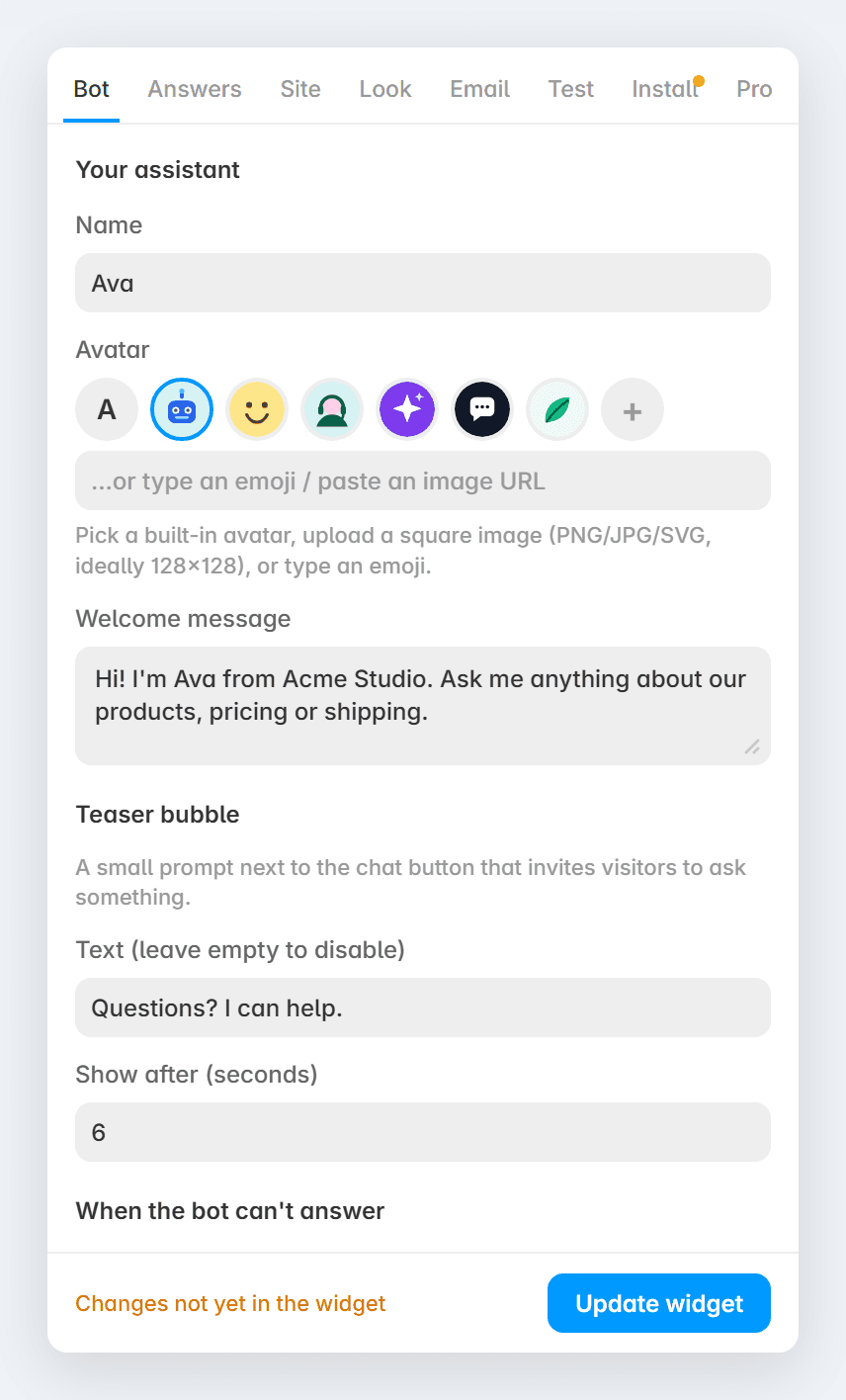
Give the bot a personality
Open SiteBot from the Plugins menu. Everything — setup, answers, design, email and licensing — lives in this one panel. No dashboard, no account.
Name: what visitors see in the chat header (“Ava”, “Support”).
Welcome message: the first thing it says when the chat opens.
Fallback reply: what it says when it can’t find an answer. Turn on Ask for email on fallback so unanswered visitors can leave their address.
Contact line: an email or a page such as /contact. Used whenever someone asks how to get in touch.
Avatar: pick a preset or upload your own image. Teaser: an optional bubble that appears next to the button after a few seconds.
2
Answers tab
Write the answers that matter
Preset answers always win over anything found on your site, so use them for hours, shipping, pricing, refunds — anything that must be exact.
Write the question the way a visitor would ask it.
Add a few alternate phrasings (“when are you open”, “hours today”).
Write the answer and, optionally, a page link the bot attaches to it.
Use Templates to start from common questions in one click.
Free includes 5 presets. Pro is unlimited.

3
Knowledge tab · Pro
Let it read your site
Click Scan site. SiteBot walks every page and CMS collection inside Framer — no crawler, no waiting, nothing sent anywhere.
See how many pages and passages it learned and which CMS collections it understands.
Untick any page you don’t want quoted, such as legal pages.
Email addresses and contact forms are picked up automatically so “how do I contact you?” just works.
Content changed later? Rescan — see Keeping it up to date below.

4
Look tab
Match your brand
The preview updates live as you change things.
Accent colour, button icon (12 options) and corner radius.
Position (bottom right or left) with separate side and bottom margins — handy if you already have a cookie bar.
Theme: Light, Dark, or Auto, which follows your site’s own light/dark mode.

5
Notify tab · optional
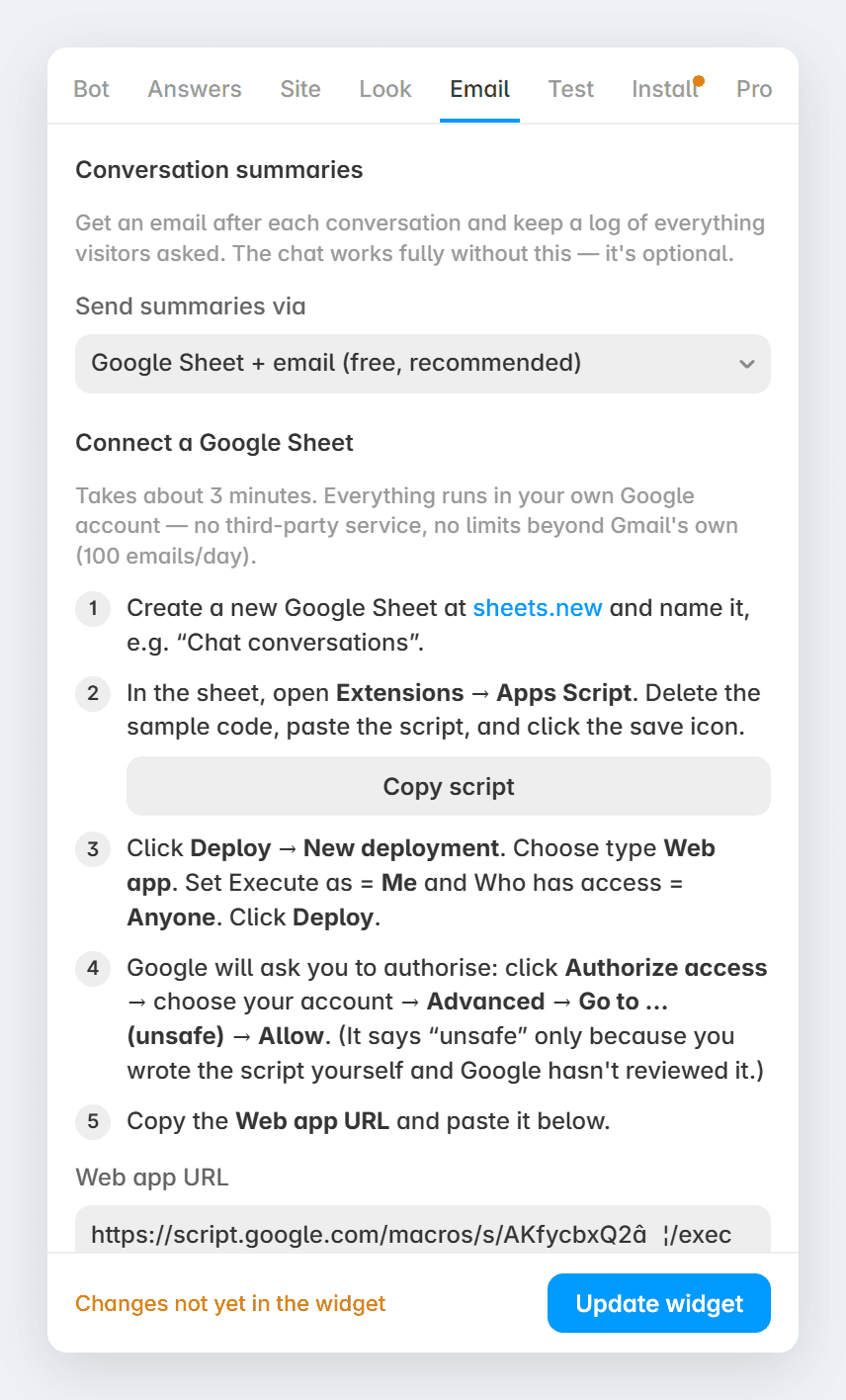
Get conversation summaries
SiteBot emails you through your own Google account — no third-party service, nothing to pay. Skip this tab entirely if you don’t want summaries; the chat works exactly the same without it.
Create a new Google Sheet.
Open Extensions → Apps Script, delete the sample code and paste the script the plugin shows you.
Deploy → New deployment → Web app, access set to Anyone. Authorise when Google asks.
Copy the web app URL into the plugin and click Send test.
Choose when to email you: every conversation, only unanswered questions and leads, or log only.
6
Test tab
Try it before visitors do
Chat with the bot inside the plugin. Every reply is labelled with its source so you can see which questions still need a preset.
Preset answer, from your site, calculated from your CMS, or no match.
Try casual phrasing, typos and follow-up questions — that’s how real visitors type.

7
Install tab
Put it on your site
SiteBot generates a code component in your project and places it on your pages. The bot runs entirely in the visitor’s browser.
Click Install on all pages (recommended) or Install on this page.
Publish your site as usual. Visitors see a chat button in the corner.
Changed anything later? Press Update widget, then publish again.

After launch
Keeping it up to date
Two buttons cover everything: Rescan when your content changes, Update widget when the plugin settings change. Then publish.
Changed settings, answers or design
The plugin shows “Changes not yet in the widget” whenever something differs from what’s installed. Go to Install, press Update widget, then publish. Until then the live site keeps the previous version.
Changed page content or CMS items
The bot answers from the last scan. Open Knowledge → Rescan, then Install → Update widget, then publish. Preset answers never need a rescan — Update widget alone is enough.
Added a new page
Run Install on all pages again to place the widget on the new page, then publish. Pages that already have the widget are left untouched.
Moving or removing it
Change position or margins in Look and press Update widget — every instance is repositioned for you. To remove the bot, delete the SiteBot layer from your pages.
License tab
Unlocking Pro
Click Buy a Pro key, complete checkout and your key is shown immediately. Paste it into the License tab and click Activate.
One key unlocks Pro in every project you own — site scan, CMS answers, unlimited presets, no “Powered by” line.
The free tier never expires and includes the full chat widget, contact answers and email summaries.
Any Framer plan works. A Google account is only needed for email summaries.

Still stuck? Ask the bot in the corner of this page — it read this guide — or email